Integrations: a commit that never reaches the work report is work done for free.
Connect GitHub or GitLab and the time worked on your commits flows all the way to the invoice in Fakturoid or iDoklad: task → commit → merge → work report → invoice. No retyping.
Connections: GitHub and GitLab report commits on their own · the runner opens pull requests on GitHub and Bitbucket Cloud · tasks and progress go to Jira, Trello and EasyRedmine · invoices to Fakturoid and iDoklad.
Reference: a project built with mcptask.online
Zuboklik.cz
A booking system for dental practices. The reference project that shows this way of working holds up outside our own product too.
Open Zuboklik.czWho this is for
You bill clients by hours logged
Commit → work report → invoice in Fakturoid or iDoklad, without retyping hours or copying totals.
You don't want a big migration project
Send tasks to Jira, Trello, or EasyRedmine and progress is posted there as comments. Move over when you're ready; leave any time.
From commit to invoice without retyping
A closed ticket is not the end. Integrations carry on all the way to the invoice in Fakturoid or iDoklad.
Commit with %
A commit message like https://mcptask.online/ACCOUNT/tasks/47 40% moves the task forward and records the time worked.
Task advances
A work record is logged from the end of your last record today (or the start of your workday) up to the commit time. No one opens the board to drag cards.
Changes merged
Merge triggers approval and a completion note. The task's last work record is set to 100%, its time stays as it was.
Work report ready
Reported time is collected into a clean work report for the period and client.
Invoice issued
From the report, you issue the invoice to Fakturoid or iDoklad in one click. Nothing is issued on its own.
A worked example
Your workday starts at 8:00; task #47 belongs to the Eshop project billed at €50/h.
- Commit at 10:00 with ".../tasks/47 40%" → record 8:00–10:00, i.e. 2 h
- Commit at 12:01 with ".../tasks/47 70%" → record 10:01–12:01, i.e. 2 h
- Commit at 14:02 with ".../tasks/47 90%" → record 12:02–14:02, i.e. 2 h
- Monthly work report → Eshop project: 6 h
Invoice line: Eshop — 6 h × €50
In mcptask.online the chain does not stop at 'ticket closed' but at 'invoice issued'.
Setup takes about 5 minutes per repository, done once by one developer. No middleware, no scraping, no custom code.
Invoicing & Billing
What you will see
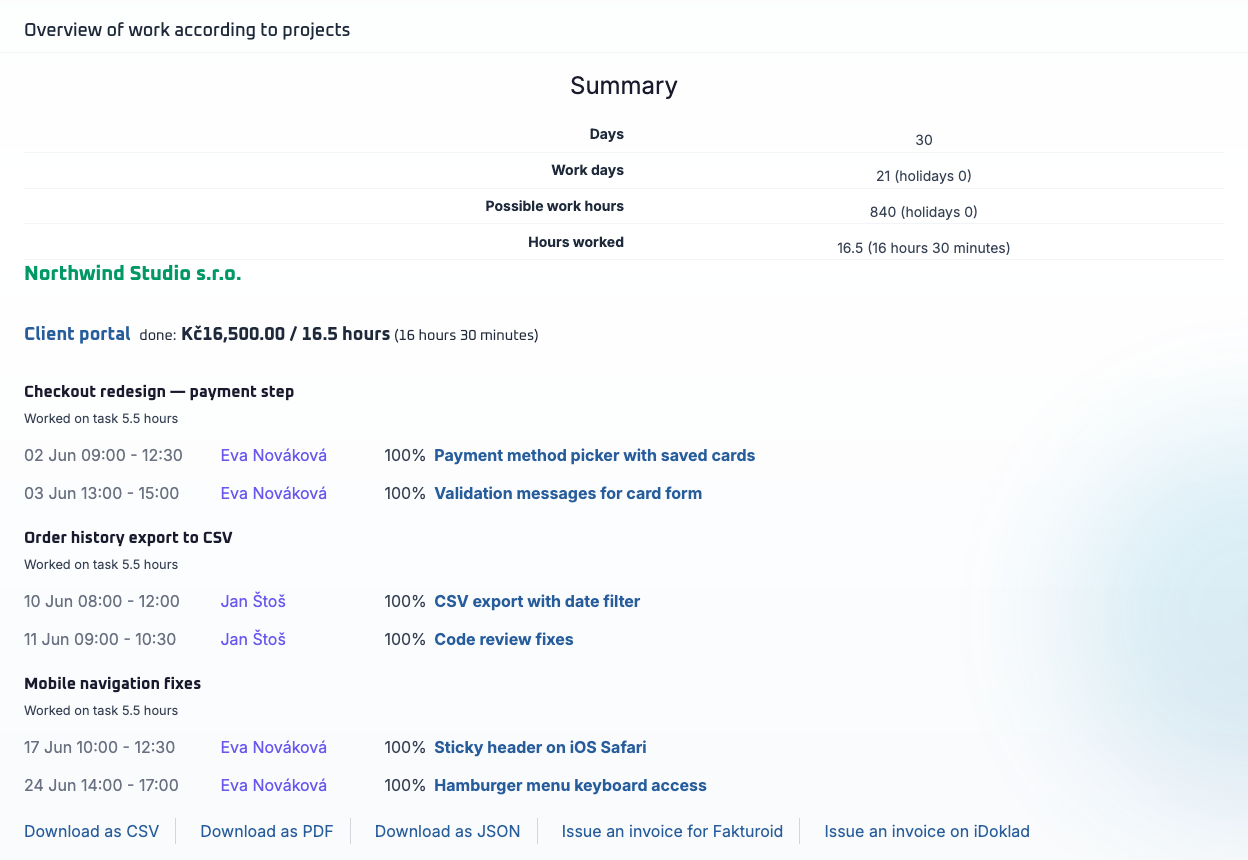
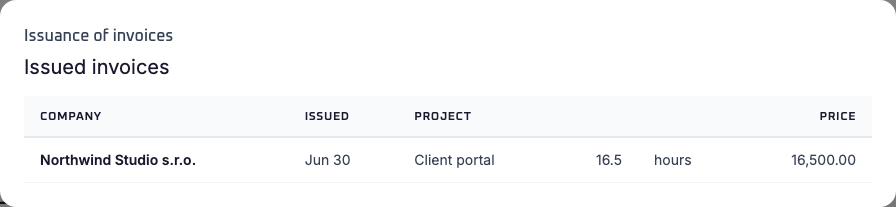
Fakturoid (Czech Republic)
Features
- OAuth 2.0 authentication
- You issue the invoice from the work report in one click
- We send the VAT rate from the company; Fakturoid computes the VAT amounts
- Client looked up in Fakturoid by company ID (IČO), otherwise by name
- Invoice date = last day of the period; the taxable supply date follows your Fakturoid settings
Workflow
- 1Reports → Work report
- 2Select the company and period (with no company selected, each company gets its own invoice)
- 3Click "Issue invoice to Fakturoid"
- 4Invoice is created in Fakturoid
iDoklad (Czech Republic)
Features
- OAuth 2.0 authentication
- You issue the invoice from the work report in one click
- We send the VAT rate from the company; iDoklad computes the VAT amounts
- Client looked up in iDoklad by company ID (IČO), otherwise by exact name
- Invoice date and taxable supply date = last day of the selected period
Workflow
- 1Reports → Work report
- 2Select the company and period (with no company selected, each company gets its own invoice)
- 3Click "Issue invoice on iDoklad"
- 4Invoice is created in iDoklad
Coexistence & migration
Coexist with the tools you already have. Send tasks and progress to Jira, Trello, or EasyRedmine, and pull the description back. Statuses are not synced.
Jira
Jira Cloud or self-hosted. Create a Jira issue from a task; work records, messages, and finish events are posted to it as comments. Only the issue description comes back.
- Out: create the issue manually from a task, then work records, messages, and finish events land as comments; the issue status is not changed
- In: start a new task name with the issue key (PROJ-123 …) and its description is loaded
- Configured per project (base URL + project key), API token per user
Trello
Create a card from a task in the first list of the project board; work records, messages, and finish events are posted to it as comments. Only the card description comes back.
- Cards are matched by the name prefix "#<card number> - ", not by the full name
- In: a new task named with that prefix loads the card description
- One board per project, a manually pasted never-expiring Trello token per user
EasyRedmine
Self-hosted EasyRedmine. Create an issue from a task with its estimate and a Difficulty custom field from the scrum point; work records set % done and add a note. Only the issue description comes back.
- Out: create the issue, work records as % done + note, finish = 100 %, messages as notes
- In: start a new task name with "#<issue number> - " and the issue description is loaded
- Configured per project (base URL + project ID), API key per user
Git: GitHub, GitLab and Bitbucket
GitHub and GitLab tell mcptask.online about every commit and merge on their own, so the time worked is recorded without anyone filling it in. The runner works the other way: its mcptask_runner pr command opens, reviews and merges pull requests on GitHub or Bitbucket Cloud. Outgoing webhooks are planned; see the roadmap.
GitHub Integration
Commits move the linked task forward and record the time worked; a merge sends the task for approval.
- Two webhooks per repository — one for push, one for pull request
- Commit message progress + PR body reference → auto-approval on merge
- Works with public and private repositories
- Signed with your account secret token via X-Hub-Signature-256
GitLab Integration
Commits move the linked task forward and record the time worked; a merge sends the task for approval.
- Two webhooks per project — one for push, one for merge request
- Commit message progress + MR description reference → auto-approval on merge
- Works with GitLab.com and self-hosted GitLab (12.0+)
- Authenticated by the X-Gitlab-Token header (your account's secret token)
Bitbucket Cloud — via mcptask_runner
The runner opens, reviews, checks and merges pull requests on Bitbucket Cloud — mcptask_runner pr drives the whole pull request loop from the task.
- PR create / list / view / reviews / merge / checks — all driven by the runner through mcptask_runner pr
- Credential: a Bitbucket access token, or email + API token (app passwords are refused)
- git_host is derived from the repository remote, or set explicitly with mcptask_runner init --git-host bitbucket
AI agents, Claude and other tools
An AI agent connects through the MCP server — Claude Code, Cursor or Claude Cowork, for example — and works with the same tasks and the same work report as people do. It is simply another user. The Installation page shows how to run the runner; the technical detail has its own page for developers.
Planned Integrations (Roadmap)
Integrations we plan. If one matters to you, mail us — real demand sets the order.
Outgoing Webhooks
Missing an integration?
Request it
Request an integration: email us with your use case. We pick the next batch of integrations from real demand, not votes.
Connect Your Workflow Today
Wire mcptask.online to your stack and let every commit flow into a timesheet, every review into an invoice.
30 days free, no credit card. We help you set it up.